

Introduction
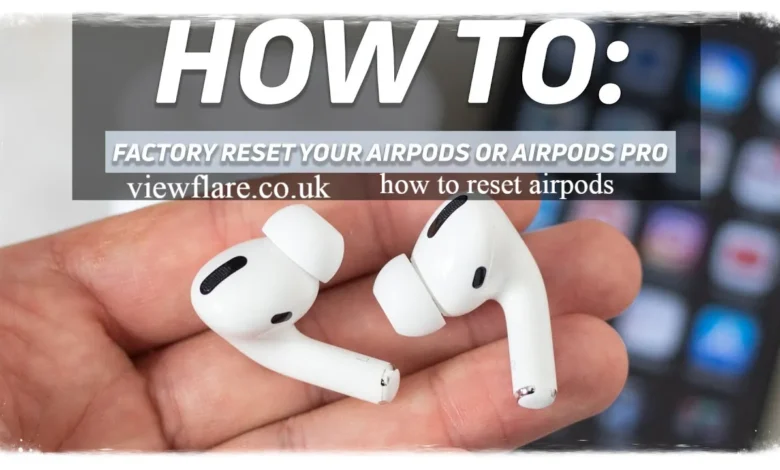
Ever had your AirPods just stop cooperating? One second they’re playing your favorite song, and the next they won’t connect, one side goes silent, or Siri stops responding. It’s frustrating, especially when you’re in a rush. The good news is that knowing how to reset AirPods can solve most of these annoying glitches in just a couple of minutes. This simple trick works like a fresh start for your earbuds, clearing out whatever confused bit of software was causing the problem. In this article, we’ll walk you through exactly what a reset does, when you actually need one, and how to do it safely across every AirPods model, from the original 1st Generation all the way to the AirPods Pro 2nd Generation. No jargon, no confusion, just clear steps you can follow right now.
What Does Resetting AirPods Do?
Resetting your AirPods basically wipes their memory of every device they’ve ever connected to. Think of it like restarting a computer that’s acting weird. It forces your AirPods to forget your iPhone, your laptop, your old tablet, everything.
Once reset, your AirPods go back to their original, out of the box state. This clears up software hiccups, connection bugs, and syncing errors between the left and right earbuds.
It won’t damage your AirPods or shorten their battery life. It simply clears the pairing history and refreshes the internal settings so you can start fresh. viewflare
When Should You Reset Your AirPods?
You don’t need to reset your AirPods every week. But there are a few clear signs it’s time for a reset. source: EcoFlow
- Only one earbud is producing sound
- AirPods keep disconnecting randomly
- They won’t connect to any device at all
- Siri isn’t responding through your AirPods
- The battery indicator looks inaccurate
- You’re selling or giving away your AirPods
I’ve personally had to reset my AirPods after updating my iPhone, since sometimes a software update confuses the Bluetooth connection. A quick reset cleared it up in seconds.
If you’re dealing with any of these issues, a reset is usually the fastest and easiest fix, way before you consider a warranty claim or a trip to the Apple Store.
How to Reset AirPods in Under 2 Minutes
Resetting your AirPods is quicker than making a cup of coffee. Here’s the general process that works for most models. viewflare
Step by Step Instructions
- Place both AirPods inside the charging case, but don’t close the lid yet.
- On your iPhone, go to Settings, then Bluetooth.
- Find your AirPods in the list and tap the small “i” icon next to their name.
- Tap “Forget This Device,” then confirm.
- Close the lid of the charging case and wait about 30 seconds.
- Open the lid again and locate the small setup button on the back of the case.
- Press and hold that button until the status light flashes white, then amber, then white again.
- Once the light flashes white, your AirPods are reset and ready to pair like new.
That’s it. The whole process usually takes under two minutes, and you’ll be back to listening in no time.
A Quick Tip
Keep your AirPods case near your iPhone during this process. Bluetooth range issues can sometimes interrupt the pairing sequence, so staying close makes everything smoother.
Can You Reset AirPods Without an iPhone?
Yes, you absolutely can. While Apple designs AirPods to work best with iPhones, you don’t need one to perform a reset.
If you use an Android phone, a Windows laptop, or any other Bluetooth device, you can still reset AirPods using the physical button on the case.
Here’s how: source: JustAnswer
- Place the AirPods in the case and close the lid
- Wait around 30 seconds
- Open the lid and press the setup button on the back
- Hold it until the light flashes amber, then white
This method works because the reset function lives inside the hardware itself, not inside the iPhone’s software. So even without Apple’s ecosystem, you’re covered.
Will Resetting AirPods Delete Settings?
This is one of the most common worries people have, and it’s a fair one. Resetting your AirPods does clear certain settings, but it’s not as drastic as it sounds.
Here’s what gets cleared:
- Pairing history with all devices
- Custom name you gave your AirPods
- Any personalized settings tied to Bluetooth pairing
Here’s what stays the same: viewflare
- Battery health and performance
- Physical functionality of the earbuds
- Firmware version, unless an update happens during setup
So no, you won’t lose anything important. You’ll just need to pair them again like you did the first time you unboxed them.

Resetting Different AirPods Models
Not all AirPods are built exactly the same, so here’s a quick breakdown for each version.
AirPods (1st Generation)
These use a simple round case with a single status light. Resetting them follows the standard process, holding the setup button until the light flashes.
AirPods (2nd Generation)
Very similar to the 1st Generation, but with slightly improved connectivity. Reset steps are identical.
AirPods (3rd Generation)
These come with a slightly different case shape, but the reset button and process remain the same as older models.
AirPods Pro
The Pro model has the same reset process, though you may also want to reset the noise cancellation calibration afterward for the best sound quality.
AirPods Pro (2nd Generation)
This model includes a speaker in the case itself, useful for locating a lost case. Resetting still follows the same button hold method, but you’ll notice a small chime confirming the action.
Common Mistakes to Avoid
Even a simple process like this can go wrong if you rush it. Watch out for these small mistakes.
- Not holding the button long enough for the light to fully cycle
- Trying to pair too quickly after resetting
- Forgetting to close the lid during the waiting period
- Assuming a reset fixes hardware damage, which it won’t
Conclusion
Learning how to reset AirPods is one of those small tech skills that saves you a ton of frustration. Whether you’re dealing with connection issues, planning to sell your AirPods, or just want a fresh start, the process takes only a couple of minutes and works across nearly every AirPods model. Give it a try next time your AirPods start acting up, chances are it’ll solve the problem instantly. Have you tried resetting your AirPods before? Share your experience or pass this guide along to a friend who might need it.
FAQS
Does resetting AirPods fix battery drain issues?
Sometimes. If the drain is caused by a software glitch, a reset can help. If it’s due to aging batteries, a reset won’t reverse that.
How long should I hold the setup button?
Hold it for about 10 to 15 seconds, until the light flashes amber and then white.
Can I reset just one AirPod instead of both?
No, resetting always affects both earbuds together since they share the same pairing profile.
Why won’t my AirPods reset even after holding the button?
Try charging the case fully first, since low battery can prevent the reset light from appearing.
Do I need internet access to reset AirPods?
No, the reset process works entirely offline through Bluetooth and the physical button.
About the Author : Alex Morgan is a tech writer who enjoys breaking down everyday gadget problems into simple, practical solutions. With a focus on Apple products and wireless audio devices, Alex has spent years testing accessories and writing guides that help readers troubleshoot common tech headaches without needing a degree in engineering.
email: johanharwen@314gmail.com
Author Name: Alex Morgan