

Introduction
Ever tried to show a friend something funny on your phone, only to fumble around trying to capture it before it disappears? That’s exactly why knowing how to screen record on iPhone is such a useful skill. Whether you’re saving a tutorial, catching a glitch in an app, or recording a video call, this feature can save you a ton of time and hassle.
The good news is that Apple built screen recording directly into iOS, so you don’t need to download any extra apps. The tricky part is that a lot of people still can’t find it, or they run into odd problems like no sound or a missing icon.
In this guide, I’ll walk you through everything you need to know. We’ll cover the basic steps, why screen recording sometimes doesn’t work, how to capture audio along with your video, where your recordings actually go, and whether you can record FaceTime calls too.
How Do I Screen Record on an iPhone?
Screen recording on iPhone is built right into the Control Center. Here’s how to set it up and use it. source: Instagram · kevinstratvert
Step 1: Add Screen Recording to Control Center
If this is your first time doing this, you’ll likely need to add the tool manually.
- Open your Settings app.
- Tap Control Center.
- Scroll until you see Screen Recording.
- Tap the green plus button next to it.
Once added, it stays there permanently, so you only need to do this once.
Step 2: Open Control Center
The way you open Control Center depends on which iPhone you have.
- On iPhone X and newer models (including iPhone 11, 12, 13, 14, 15, and 16), swipe down from the top right corner of the screen.
- On iPhone 8 or earlier, swipe up from the bottom of the screen.
Step 3: Start Recording
Tap the Screen Recording icon, which looks like a solid circle inside a ring. You’ll see a three second countdown, then recording begins. A red bar or red dot will appear at the top of your screen to remind you that it’s active.
Step 4: Stop Recording
When you’re done, tap the red indicator at the top of your screen and choose Stop. You can also open Control Center again and tap the recording icon a second time.
That’s genuinely all it takes. Once you’ve done it a couple of times, it becomes second nature.
Why Can’t I Screen Record on My iPhone?
This is one of the most common frustrations people run into, and there are usually a few simple explanations.
Screen Recording Isn’t Added to Control Center
This is the most frequent reason. If you skipped Step 1 above, the icon simply won’t be there yet. viewflare
Storage Is Full
Screen recordings are video files, and they can take up quite a bit of space. If your storage is nearly full, your iPhone may block new recordings until you free up room.
Restrictions or Parental Controls
If Screen Time restrictions are turned on, screen recording might be disabled. You can check this under Settings, then Screen Time, then Content and Privacy Restrictions. source: CopyTrans Studio
A Software Glitch
Sometimes iOS just needs a restart. Turn your iPhone off completely, wait a few seconds, then turn it back on.
Outdated iOS Version
Screen recording has been a native feature since iOS 11, but small bugs sometimes appear after major updates. Keeping your software updated under Settings, then General, then Software Update usually solves this.
How Do I Record My iPhone Screen With Sound?
A silent recording is fine sometimes, but often you want the audio too, especially for tutorials or reactions.
Here’s how to make sure sound gets captured:
- Open Control Center.
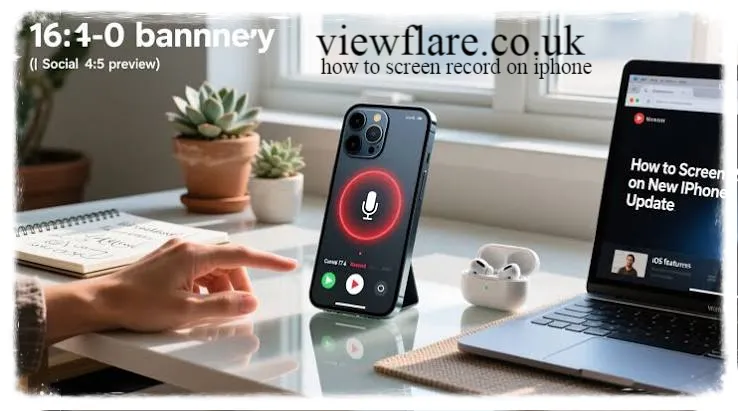
- Press and hold (don’t just tap) the Screen Recording icon.
- A microphone option will appear. Tap it to turn it on if you want your voice included.
- Tap Start Recording.
If you only want the sound from the app itself, such as a video playing or a game, you don’t need the microphone turned on. The app audio records automatically. The microphone option is only needed if you want your own voice layered on top.
One quick personal tip. I always do a five second test recording before anything important, just to confirm the microphone is actually on. It’s saved me from recording silent tutorials more than once.
Where Do iPhone Screen Recordings Go?
Once you stop a recording, it’s automatically saved to your Photos app. viewflare
To find it:
- Open the Photos app.
- Tap Albums.
- Scroll down to Media Types and tap Videos.
Your screen recordings will be sitting there along with your other videos, usually near the top since they’re often the most recent.
From there, you can trim the clip, share it through Messages or email, or upload it to social media just like any other video on your phone.
Can I Screen Record FaceTime?
Yes, you can screen record a FaceTime call, and the process is the same as recording anything else on your iPhone. Just open Control Center and tap the recording icon while the call is active.
That said, there are a few important things to know. viewflare
- Always let the other person know you’re recording. It’s respectful, and in many places it’s actually required by law.
- The recording will capture your side of the screen, including your camera view and whatever the other person is sharing.
- If someone else has a low quality connection, that will show up in your recording too, since it captures exactly what’s on your screen in real time.
Limitations You Should Know About
Screen recording is powerful, but it’s not unlimited. There are a few things it simply can’t do.
- DRM protected content. Apps like Netflix, Disney Plus, and Apple TV block screen recording to protect copyrighted material. If you try recording these, your screen will usually show up black or the audio will cut out.
- Some banking or payment apps also block screen recording for security reasons.
- Battery drain. Recording uses a fair amount of processing power, so your battery will drain faster than normal during longer recordings.
- Storage size. Longer recordings, especially in high resolution, can take up a surprising amount of space quickly.
Quick Troubleshooting Checklist
If something isn’t working, run through this list:
- Check that Screen Recording is added to Control Center.
- Confirm you have enough free storage.
- Restart your iPhone.
- Update to the latest iOS version.
- Check Screen Time restrictions.
- Make sure you’re not trying to record DRM protected content.
Conclusion
Learning how to screen record on iPhone really only takes a few minutes, and once you’ve added the tool to Control Center, it’s always right there when you need it. Whether you’re capturing a tutorial, saving a memory from a FaceTime call, or troubleshooting an app problem, this feature covers pretty much everything you’d want from a built in tool.
If you run into trouble, remember it’s usually something simple like a storage issue or a missing Control Center shortcut rather than a deeper problem with your phone.
Have you tried recording your iPhone screen with sound yet? Give it a try next time you want to save something worth keeping, and share this guide with a friend who’s still asking how it works.
FAQs
Does screen recording work on all iPhone models?
Yes, as long as your iPhone runs iOS 11 or later, screen recording is available.
Can I screen record a phone call?
No, regular phone calls cannot be screen recorded due to privacy restrictions. FaceTime calls can be recorded since they’re treated differently by iOS.
Will screen recording capture notifications?
Yes, any notifications that pop up during recording will be captured unless you turn on Do Not Disturb first.
Can other people tell if I’m screen recording during FaceTime?
Yes, iOS shows a red recording indicator on your screen during the call, though it may not always be obvious to the other person unless they’re watching closely.
Why is there no sound in my screen recording?
This usually means the microphone wasn’t turned on before you started recording, or the app you’re recording blocks audio capture.
How to Recover Deleted Messages iPhone
Author Bio: Sarah Malik is a tech writer who enjoys breaking down everyday iPhone features into simple, practical guides. When she’s not writing, she’s usually testing out the latest iOS updates on her own phone before anyone else has to.
email: johanharwen@314gmail.com
Author Name: Sarah Malik