

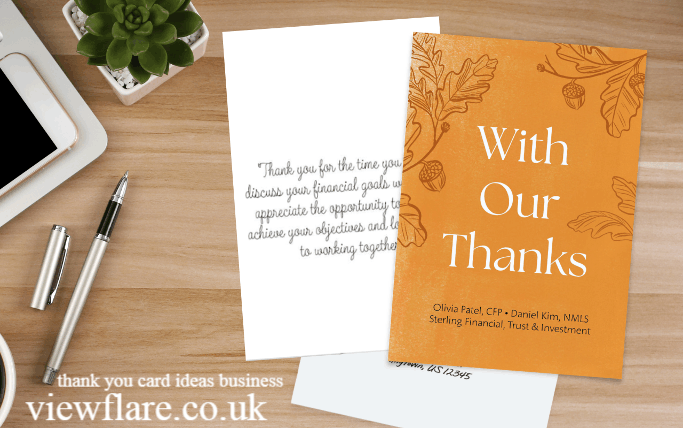
A thoughtful thank you card can turn an ordinary business interaction into a memorable customer experience. Whether you run a small local business, work with corporate clients, manage a retail store, or lead a growing startup, a genuine note shows people that their support matters.
The best thank you card ideas business owners use are simple, specific, and personal. You do not need a long message or an expensive gift. A handwritten note, personalized card, customer specific detail, or sincere expression of gratitude can make your business feel more human.
This guide shares 50 practical ideas for business thank you cards, along with professional wording examples and tips for creating cards customers, clients, employees, and partners will appreciate.
Why Do Thank You Cards Matter in Business?

Thank you cards matter because they create a personal connection that routine digital communication often cannot provide. A well written card can reinforce trust, recognize loyalty, encourage repeat business, and strengthen professional relationships.
A business thank you card can be appropriate after:
- A customer makes a significant purchase
- A client completes a project
- Someone provides valuable feedback
- A customer refers a new client
- An employee reaches an important milestone
- A business partner provides support
- A customer continues supporting your company
- A client renews a service
- Someone attends your event
- A customer supports a local business
The key is making the message feel genuine rather than automated.
50 Thank You Card Ideas for Business
Here are practical ideas you can adapt for different customers, clients, employees, and professional connections.
Customer Appreciation Ideas
- Thank customers for their first purchase.
“Thank you for choosing our business. We truly appreciate your support.” - Thank a customer for a repeat purchase.
“Thank you for coming back. Your continued support means so much to our team.” - Recognize a loyal customer.
“We are grateful to have you as a loyal customer. Thank you for being part of our journey.” - Thank someone for supporting your local business.
“Thank you for supporting our small business and being part of our local community.” - Celebrate a customer milestone.
Recognize a customer’s first anniversary, tenth purchase, or another meaningful milestone. - Thank a customer after a large purchase.
Mention the purchase and explain how their support helps your company grow. - Thank customers after an event.
Send a card to people who attended a launch, workshop, open house, or community event. - Recognize valuable feedback.
Let customers know their suggestions help improve your products or services. - Thank customers for their patience.
This works particularly well after a service delay or complicated support experience. - Send a surprise appreciation card.
A thank you note does not always need a specific occasion.
Client Thank You Card Ideas
- Thank a client after completing a project.
Mention the successful collaboration and express interest in working together again. - Thank a new client for choosing you.
Make the first professional interaction feel personal. - Thank a long term client.
Recognize the history of the relationship instead of sending a generic message. - Thank a client after a consultation.
Mention the time they invested and the opportunity to help. - Thank a client for their trust.
Trust is particularly important in professional services. - Thank a client for renewing a service.
“Thank you for continuing to trust our team. We appreciate the opportunity to serve you.” - Thank a client after achieving a result.
Celebrate the outcome you achieved together. - Thank a client for providing useful feedback.
Explain that their input helps you improve. - Thank a client after a difficult project.
Recognize their patience, cooperation, and communication. - Send an anniversary appreciation card.
Celebrate the anniversary of your business relationship.
Referral and Partnership Ideas
- Thank someone for a referral.
“Your referral is one of the greatest compliments you can give us. Thank you.” - Thank a business partner.
Recognize the value of your partnership and shared success. - Thank a supplier for reliable service.
Acknowledge consistent quality, communication, or support. - Thank a professional connection.
Mention advice, introductions, or opportunities they provided. - Thank a networking contact.
Use the card to continue a relationship after an important introduction. - Thank a collaborator.
Highlight something specific they contributed to a project. - Thank a mentor.
Explain how their guidance influenced your professional development. - Thank an investor or early supporter.
Startups can recognize people who believed in the business early. - Thank an event sponsor.
Mention the specific contribution and its impact on the event. - Thank someone who recommended your company.
Personalized appreciation can encourage future word of mouth referrals.
Employee Appreciation Ideas
- Thank an employee for going above and beyond.
- Recognize someone after completing a challenging project.
- Thank your team after a busy season.
- Celebrate an employee milestone.
- Recognize outstanding customer service.
- Thank a new team member for joining the company.
- Celebrate an employee anniversary.
- Thank an employee for helping another colleague.
- Recognize leadership and dedication.
- Send appreciation after reaching an important company goal.
A simple message can be powerful:
“Thank you for your dedication, hard work, and commitment. Your contribution makes a real difference to our team and our customers.”
Seasonal and Special Occasion Ideas
- Thank customers during the holiday season.
- Send a Thanksgiving appreciation card.
- Celebrate a company anniversary with customers.
- Thank customers after a successful product launch.
- Recognize support during a difficult period.
- Send a year end appreciation message.
- Thank customers for being part of your community.
- Celebrate a customer anniversary.
- Send a card after receiving an important testimonial.
- Send a simple “just because” thank you card.
The last idea is often one of the most effective because the recipient may not expect it.
What Should You Write in a Business Thank You Card?

The best business thank you messages are specific, sincere, concise, and relevant to the relationship.
A simple structure is:
- Address the person by name.
- Clearly say thank you.
- Mention the specific action you appreciate.
- Explain why it mattered.
- End with a warm professional statement.
For example:
“Dear Sarah, thank you for choosing our team for your recent project. We truly appreciate the trust you placed in us and enjoyed working with you. We look forward to supporting you again in the future.”
This approach works better than a vague message because it tells the recipient exactly why you are grateful.
Creative Ways to Make Business Thank You Cards More Personal
Personalization can make a basic card feel much more meaningful.
Write a Handwritten Note
Handwritten thank you cards can create a stronger personal impression than an entirely automated message. Even if the card is professionally printed, adding a handwritten sentence can make it feel more authentic.
Mention a Specific Detail
Instead of writing “Thank you for your business,” mention the actual interaction.
For example:
“Thank you for taking the time to share your feedback about our new service. Your suggestions were incredibly helpful.”
Use Your Brand Identity
Use your company colors, logo, typography, and visual style while keeping the design clean. A professional card should feel connected to your brand without looking like an advertisement.
Add a Customer Specific Offer
Depending on your business, you could include:
- A discount code
- Free shipping
- A loyalty reward
- Early access
- A complimentary service
- A future purchase incentive
The offer should support the appreciation rather than become the main purpose of the card.
Add a QR Code
A QR code can connect the physical card to a useful digital experience. It could lead to a loyalty page, feedback form, special offer, appointment page, or personalized landing page.
Make sure the QR code provides genuine value instead of simply directing customers to your homepage.
Professional Thank You Card Wording Examples

Here are several short messages you can adapt.
For customers:
“Thank you for choosing our business. We appreciate your support and look forward to serving you again.”
For loyal customers:
“Your continued support means more to us than you know. Thank you for being a valued part of our business.”
For clients:
“Thank you for trusting our team. We sincerely appreciate the opportunity to work with you.”
For referrals:
“Thank you for recommending our business. Your confidence in us is the highest compliment we could receive.”
For feedback:
“Thank you for sharing your feedback. Your insight helps us improve and serve our customers better.”
For employees:
“Thank you for your dedication and hard work. Your contribution plays an important role in our success.”
For business partners:
“We truly value your partnership and appreciate everything we have accomplished together.”
How Can Small Businesses Make Thank You Cards Stand Out?
Small businesses can compete with larger companies by making appreciation more personal.
Try these approaches:
- Use the customer’s name.
- Reference a previous conversation.
- Write at least one handwritten sentence.
- Keep the message short and genuine.
- Avoid overly promotional language.
- Match the card to your brand.
- Send the card promptly.
- Recognize loyalty and milestones.
- Include a useful reward when appropriate.
- Make appreciation part of your customer experience.
For local businesses, phrases such as “Thank you for supporting our local business” can also reinforce the community relationship.
Thank You Cards by Industry
The message should reflect the expectations of your industry.
| Industry | Useful Thank You Occasion |
|---|---|
| Retail | Purchase or customer loyalty |
| Real estate | Closing, referral, or home purchase |
| Financial services | Consultation or continued trust |
| Insurance | Renewal or claim support |
| Healthcare | Patient appreciation |
| Startups | Early customer or investor support |
| Staffing | Successful placement or referral |
| Nonprofits | Donation or volunteer service |
| Education | Teacher, student, or staff appreciation |
| Local business | Community support and repeat visits |
The more closely the message matches the customer’s experience, the more authentic it will feel.
Should You Use a Thank You Card Template?
Templates are useful when you need to send many cards, but they should be treated as starting points rather than final messages.
A good template should allow you to customize:
- Recipient name
- Specific reason for appreciation
- Product or service
- Company name
- Relevant milestone
- Personal closing
- Optional offer
Free business thank you cards templates can save time, but customization is what makes the final card feel genuine.
Common Mistakes to Avoid
Even professional thank you cards can lose their impact when they feel too generic.
Avoid:
- Sending exactly the same message to everyone
- Making the card primarily promotional
- Writing extremely long messages
- Using excessive corporate language
- Forgetting the recipient’s name
- Sending the card weeks after the relevant event
- Including an irrelevant discount
- Making unrealistic promises
- Treating appreciation as an automated task
A short message with one meaningful personal detail can be more effective than a full page of generic text.
Custom FAQs
What Are Some Simple Thank You Card Ideas for Business?
Simple ideas include thanking customers for purchases, repeat business, referrals, feedback, loyalty, event attendance, or local support. A short handwritten sentence can make a standard business card feel much more personal.
Where Can I Find Thank You Card Ideas for Business on Pinterest?
Pinterest can be useful for finding visual inspiration for business thank you cards, including layouts, typography, color combinations, handwritten designs, and packaging ideas. Use the visual examples as inspiration and create original wording that fits your brand.
What Are Some Business Thank You Messages to Customers?
A simple message is: “Thank you for choosing our business. We truly appreciate your support and look forward to serving you again.” For loyal customers, mention their continued support specifically.
What Is Good Business Thank You Card Wording?
Good wording is warm, concise, and specific. Explain what you appreciate and why it matters. For example: “Thank you for trusting our team with your project. We truly appreciate the opportunity to work with you and look forward to our continued partnership.”
Where Can I Find Free Business Thank You Card Templates?
Free templates are available through various design and document platforms. Choose a template that allows you to customize the recipient’s name, message, branding, and occasion. Always review licensing terms before using a template commercially.
Final Takeaway
The strongest thank you card ideas business owners can use do not need to be complicated. A sincere message, specific detail, thoughtful design, and personal touch can make customers and professional contacts feel genuinely valued.
Whether you are thanking a customer for a purchase, a client for their trust, an employee for dedication, or a partner for their support, focus on one principle: make the recipient feel seen and appreciated.
When appreciation becomes a consistent part of your customer experience, business thank you cards can support stronger relationships, customer loyalty, referrals, and long term connections.
Author Bio: johan harwen is a business writer who shares practical ideas for professional communication, customer relationships, and brand growth. His work helps businesses build stronger connections through thoughtful messaging and effective marketing strategies.
Email: johanharwen@314gmail.com
Author Name: Johan Harwen
Also Read:
SAP Business 1
Casual Business Jacket
Web Design for Small Businesses Near Me
Business Backpacks for Men
Black Diamond Phillips Screwdriver BD1-037